How to Import Client List using Excel Template in OneOffice
This tutorial guides you through importing multiple client records into OneOffice using an Excel
template, saving you from entering each client's information manually.
Go to
oneoffice.quicklyservices.com
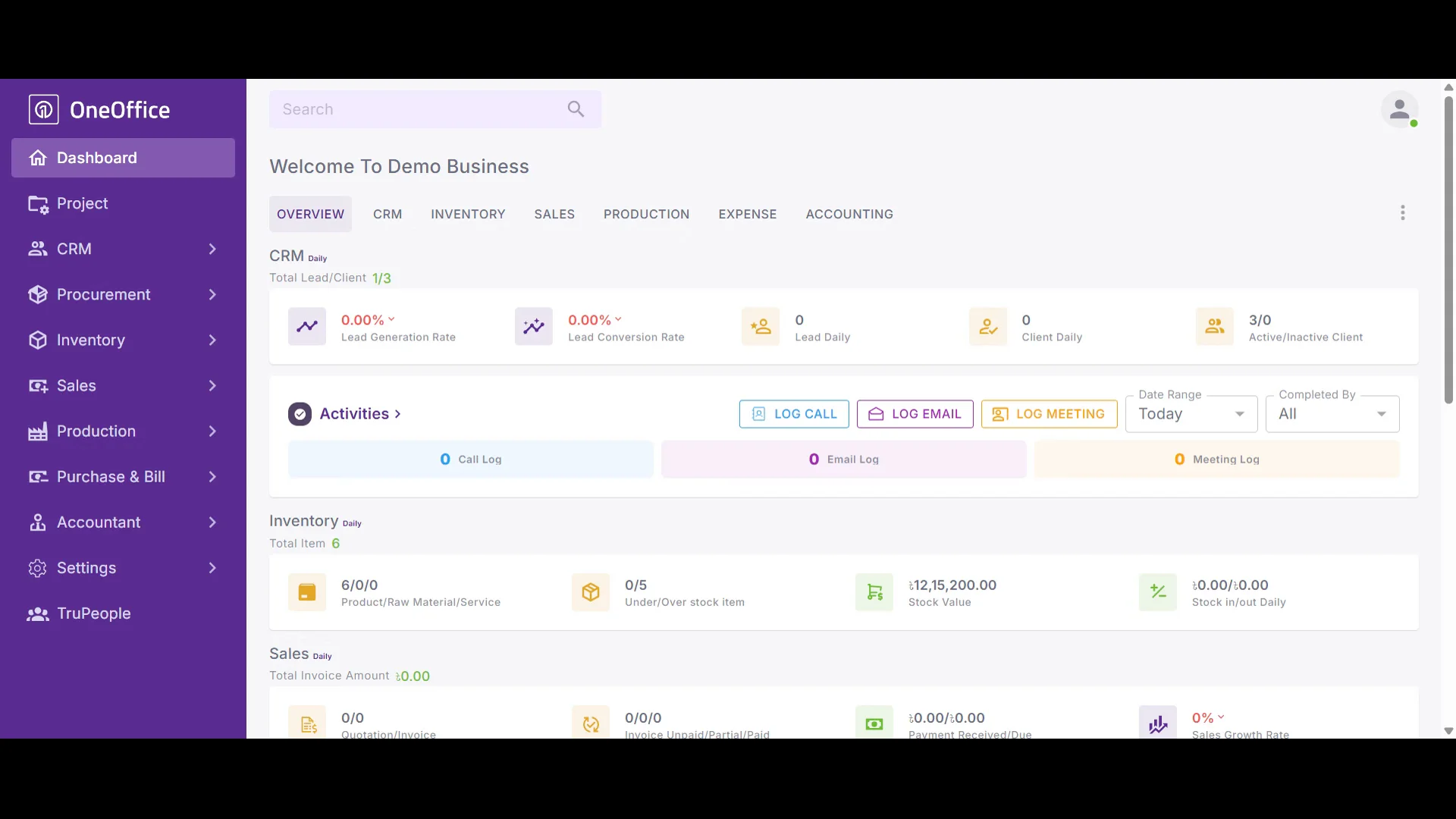
1. Login to OneOffice web portal
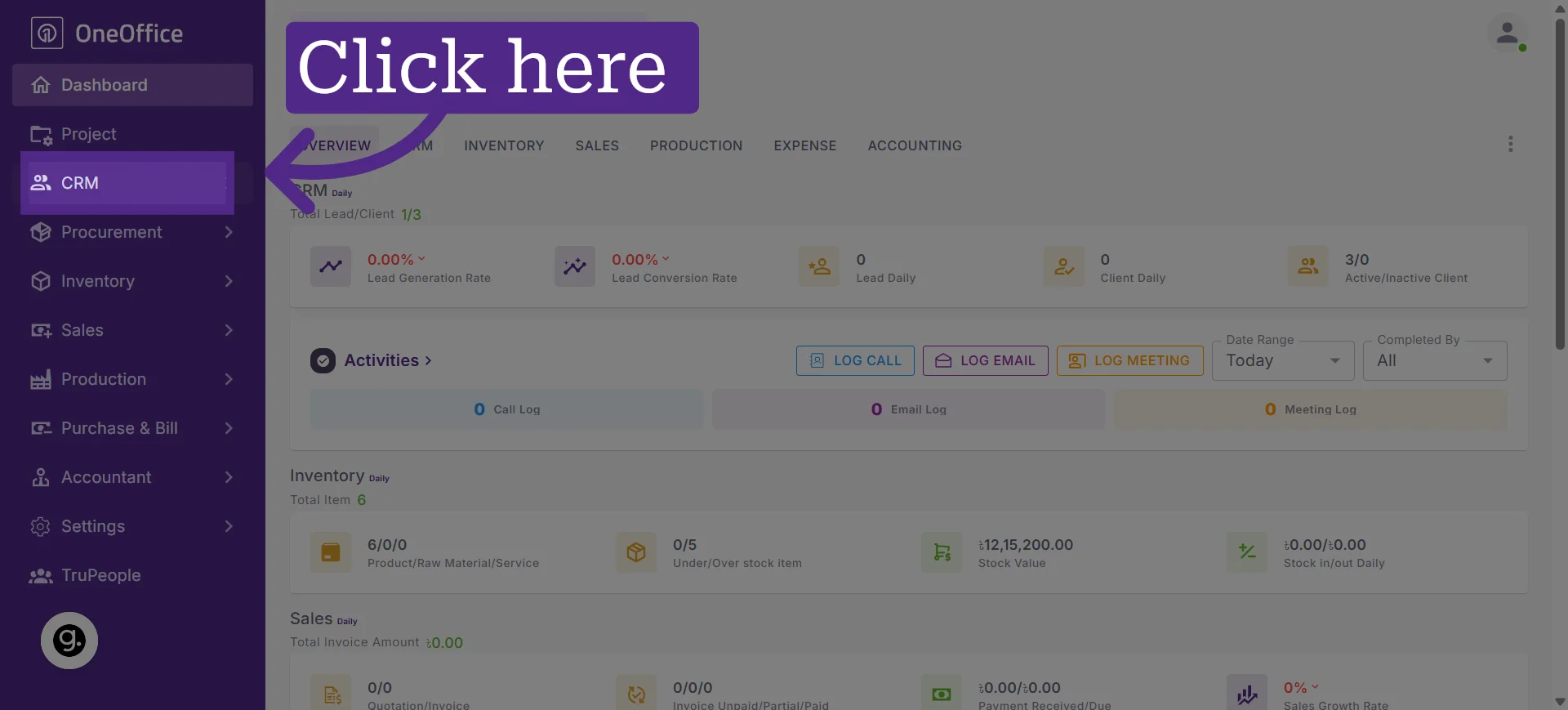
2. Click the CRM module
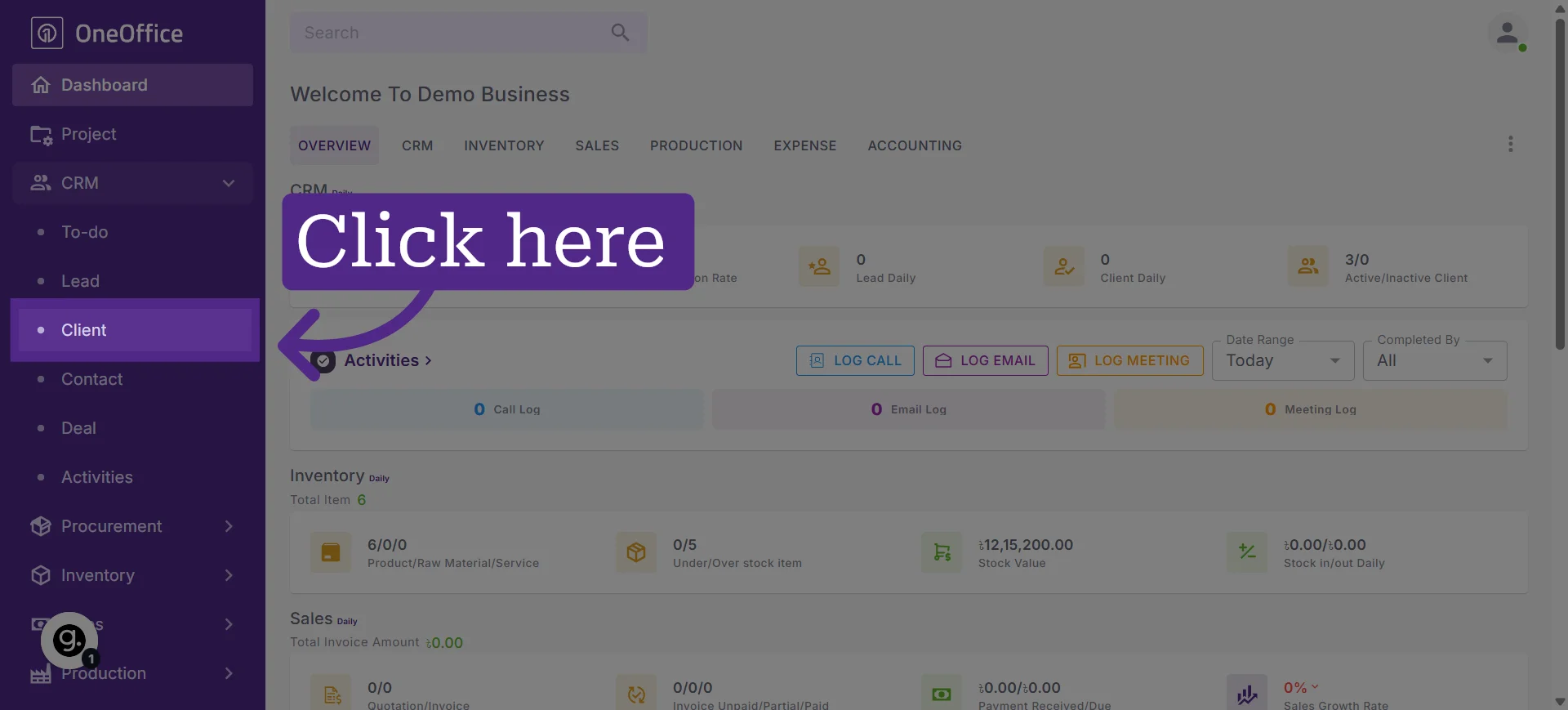
3. Click "Clients" from the CRM dropdown menu
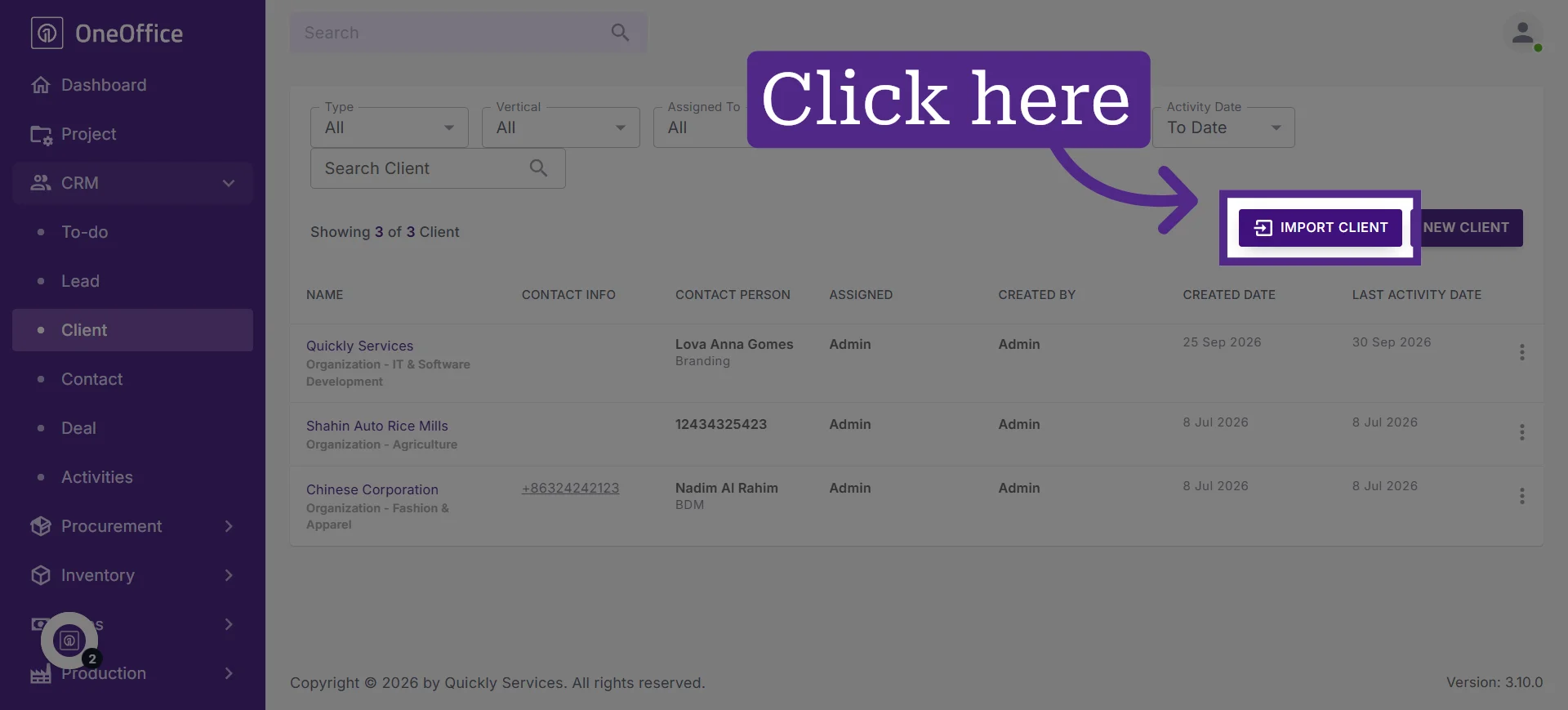
4. Click "Import Client" to initiate the import process
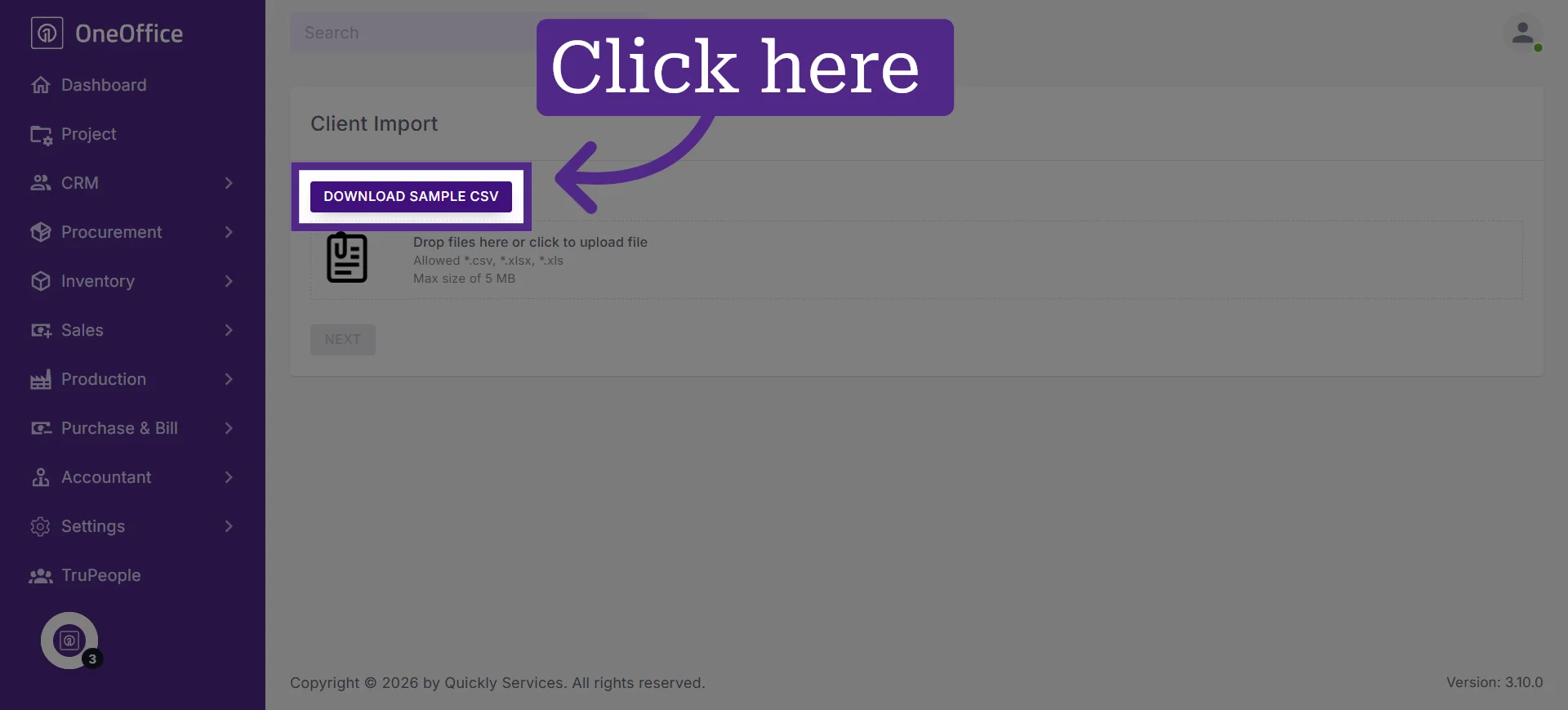
5. Download the Excel template and fill in the required fields with your client information
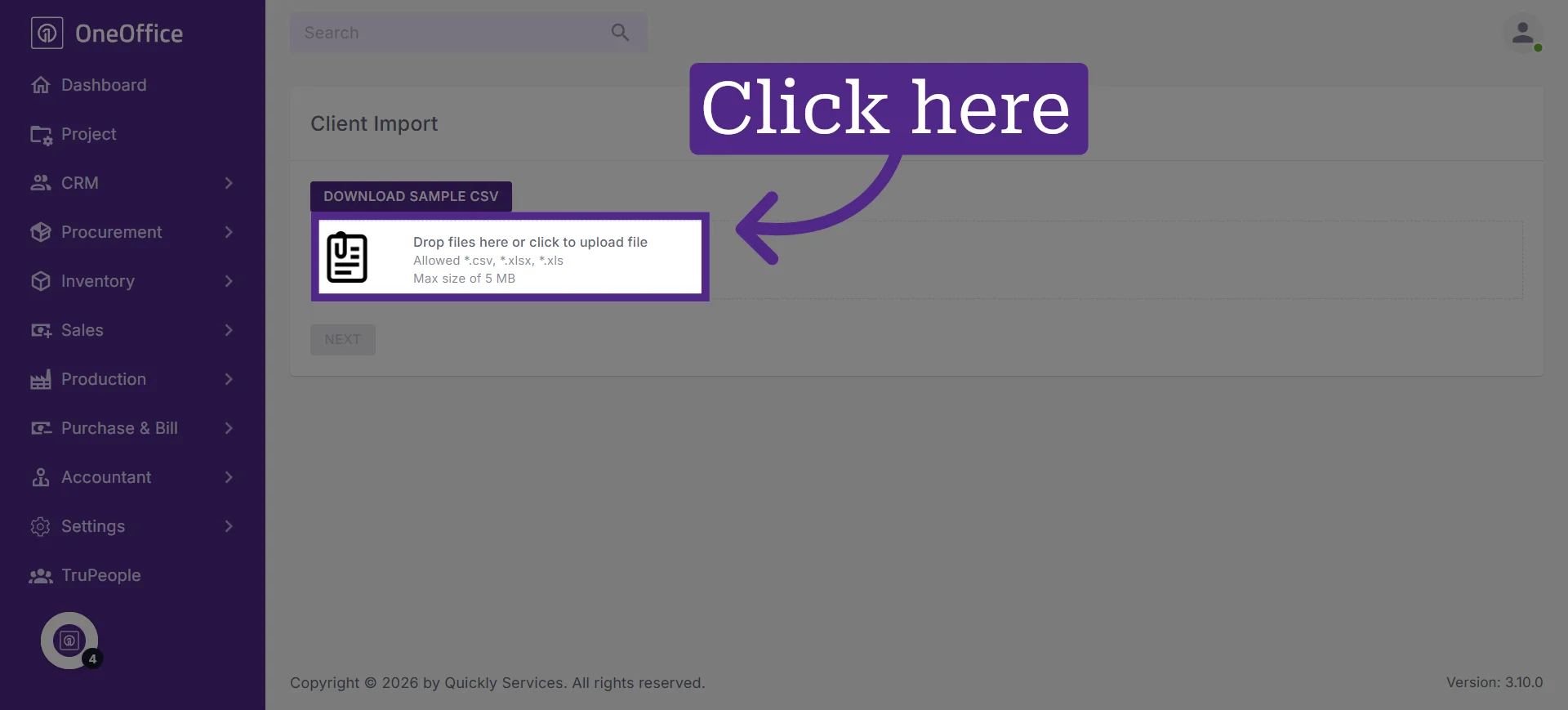
6. Click "Click to Upload Files" to upload the completed Excel file
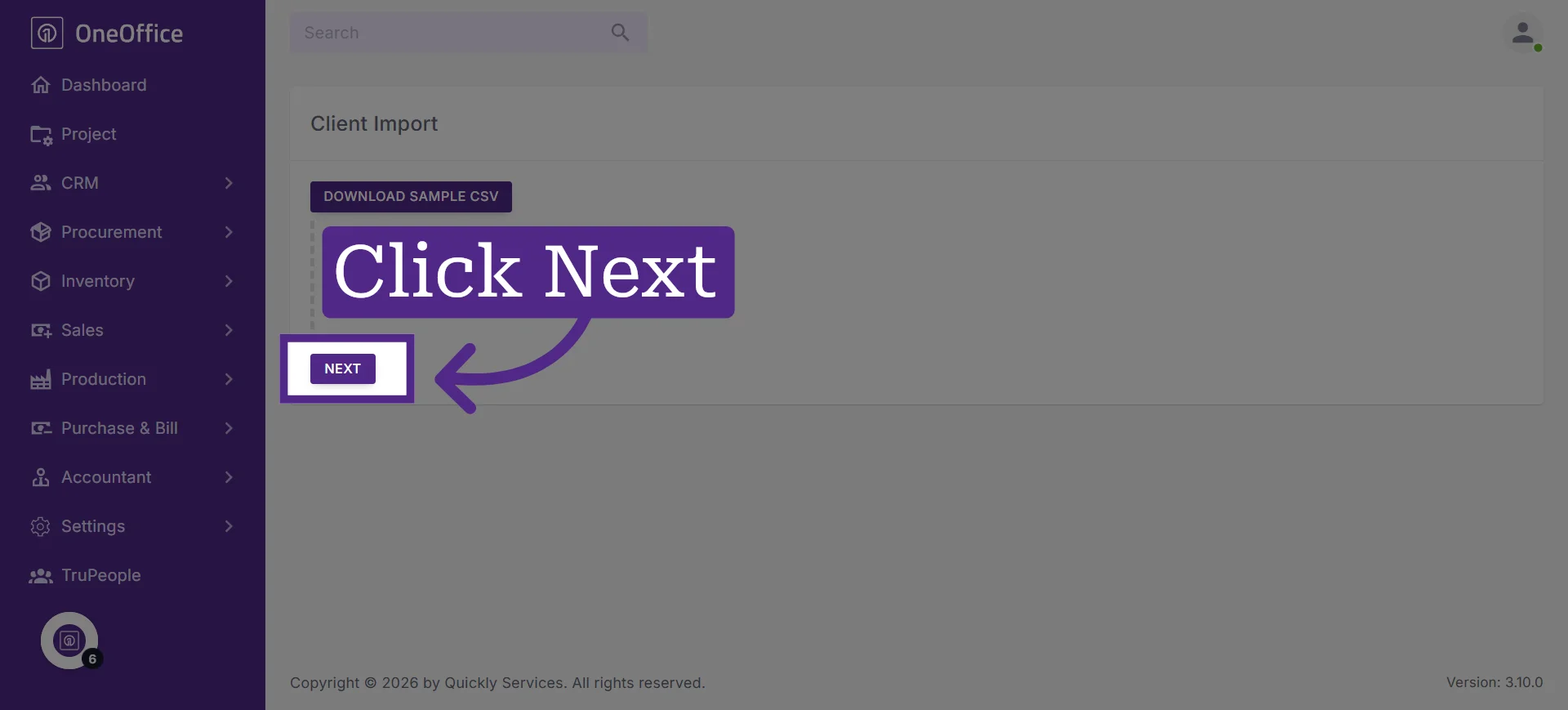
7. Click "Next" to proceed with the import and save the client information